The GCRTA Paratransit App gives registered Paratransit riders and their caregivers an easy way to book, view, and cancel trips 24 hours a day, 7 days a week, directly from a smartphone or tablet.
Important Things to Know
- The app is optional: You do not have to use the app. You can still book and manage rides by calling 216-621-9500 or by visiting the online scheduling site. No existing services are going away.
- Free to use: The app is completely free to download and use.
Fares and payments: The app is strictly for scheduling and managing rides. You cannot pay your fare in the app; continue paying your fares as you have in the past.
Getting Started: Download and Log In
Step 1 How to Download
Starting October 5, 2026, download the app from the Apple App Store (for iPhone) or the Google Play Store (for Android):


- Open your app store and search for: GCRTA Paratransit App
Step 2 How to Sign In
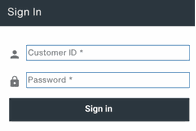
- Open the app to view the Login Screen.
- In the Client ID box, enter your Paratransit Client ID number.
- In the Password box, enter your password. (Note: Your starting password is your Client ID number unless you have already changed it).
- (Optional) Tap the box next to Remember Client ID so you do not have to type it every time.
- Tap Sign In.
Navigating the App
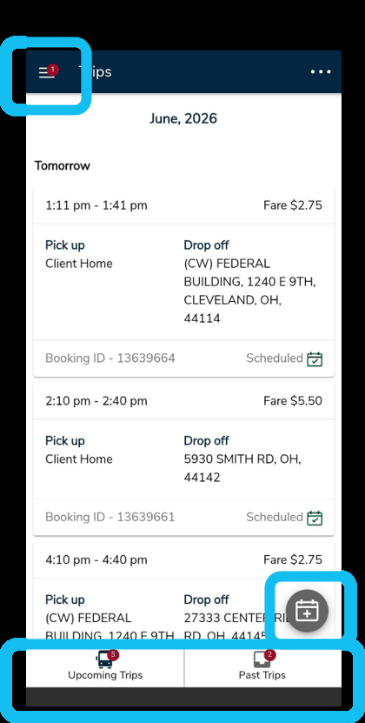
Once you sign in, the Trips screen will appear:
- Upcoming and Past Trips: Use the buttons at the bottom of the screen to switch between rides you have scheduled and trips you have already taken.
- Trip Cards: Each card shows your scheduled pickup window, the fare, and your pickup and drop-off locations. Tap any trip card to see more details or cancel the ride.
- Menu (top left): Tap the menu icon (three lines) to view your profile, update saved home and work addresses, read service policies, find contact information, or share feedback.
- Book Trip Icon (calendar with a plus sign): Tap this icon at the bottom right or in the main menu to start booking a ride.
How to Book a Trip in 6 Steps
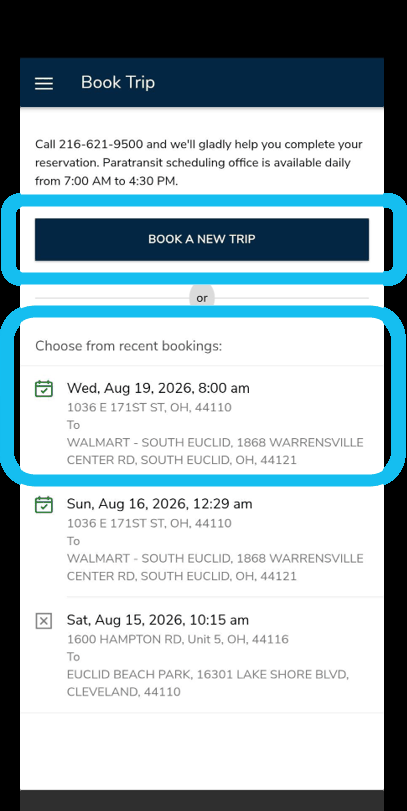
When you start, tap Book a New Trip or choose a trip under Choose from recent bookings to automatically fill in details from an earlier ride.
The app walks you through 6 simple steps:
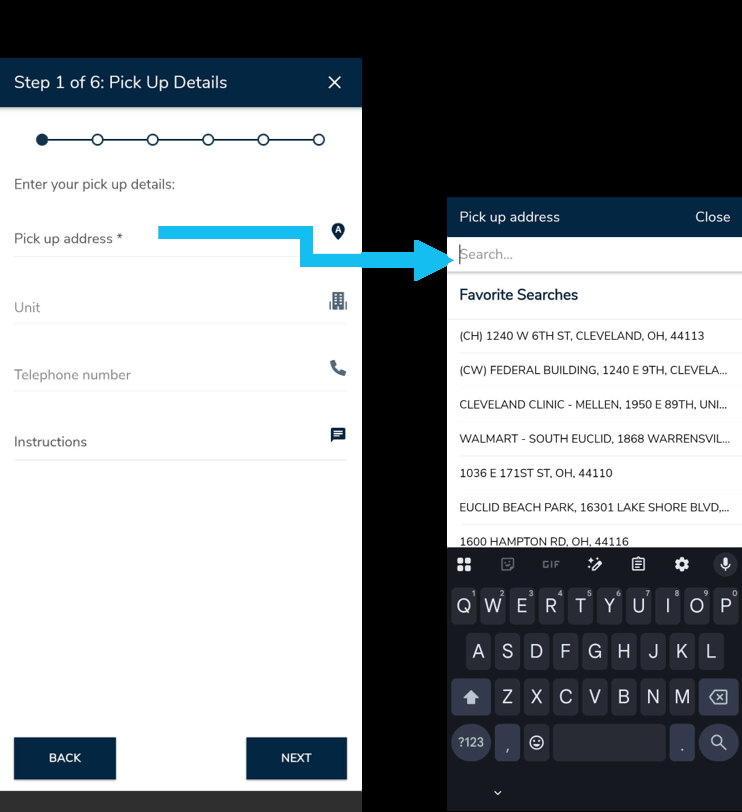
Step 1 Pick Up Details
- Enter your pickup address.
- You can choose an address from your Favorite Searches list or type in a new one.
- Add an apartment or unit number, a phone number, and special pickup instructions (such as “Wait near main lobby”). The app will save these details for next time.
- Tap Next.
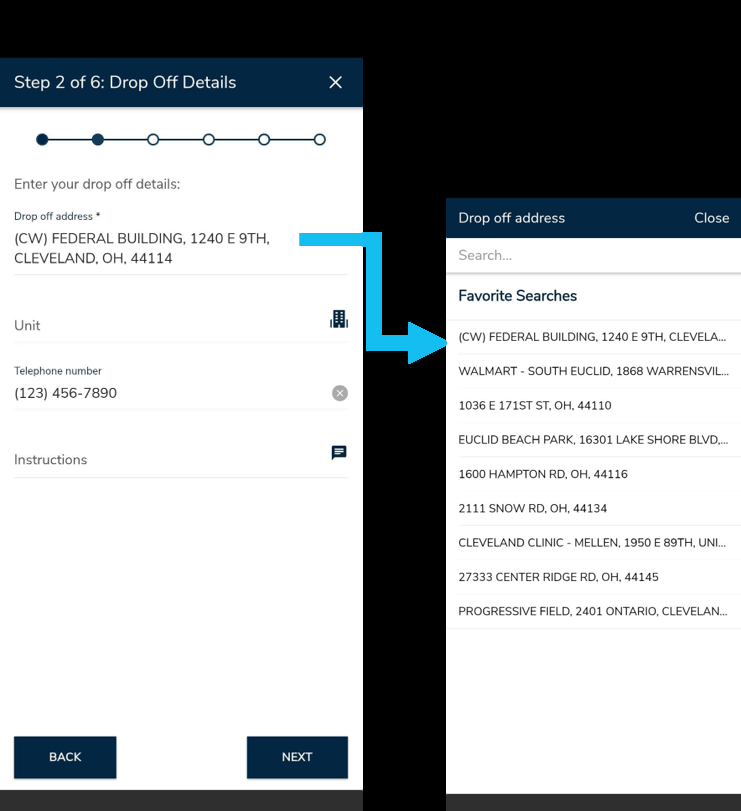
Step 2 Drop Off Details
- Enter your destination address, unit number, contact phone number, and arrival instructions.
- Tap Next.
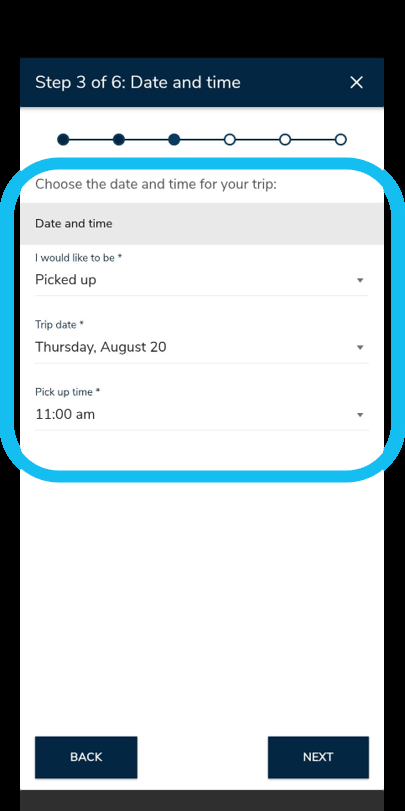
Step 3 Date and Time
- Choose whether you want to set your time based on when you are Picked up or when you need to be Dropped off.
- Select Date: You can schedule trips up to 3 days in advance. Same-day trips cannot be booked through the app.
- Deadline: Rides for the next day must be booked before 4:30 PM.
- Select Time: Pick your preferred time. (Times that conflict with your other scheduled rides will not be shown).
- Tap Next.
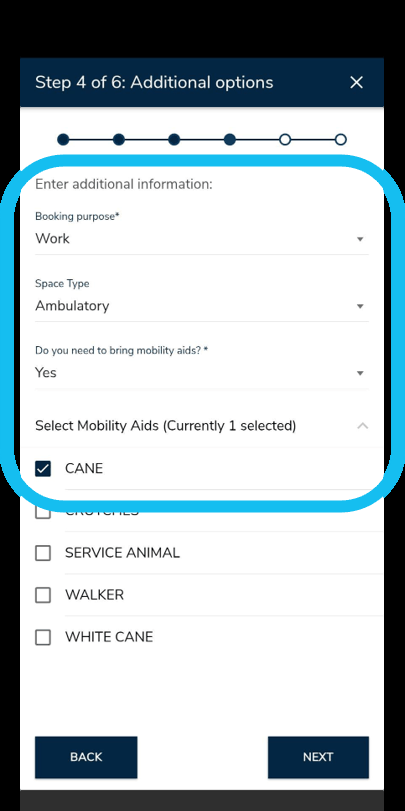
Step 4 Additional Options
- Booking Purpose: Select the reason for your trip (such as Work or Medical). You can also choose Prefer Not to Disclose.
- Space Type: Check your space requirement (such as Ambulatory or Wheelchair). The app remembers your usual setting, but you can change it if needed.
- Mobility Aids: If you are bringing mobility equipment, check all that apply: Cane, Crutches, Walker, White Cane, or Service Animal.
- Tap Next.
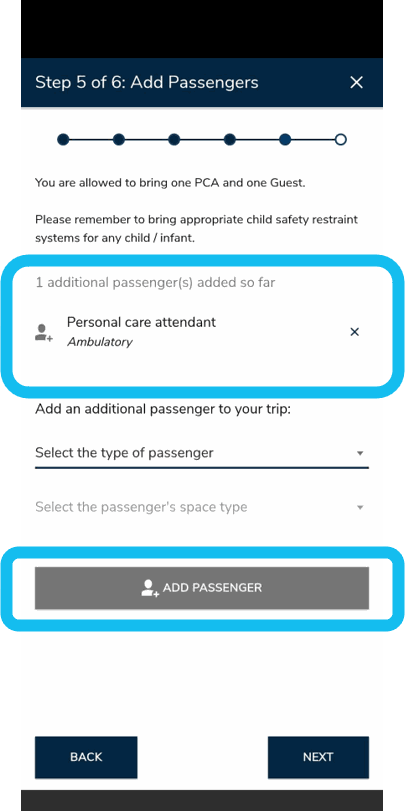
Step 5 Add Passengers
- You may travel with one Personal Care Attendant (PCA) and one Guest.
- To add someone, select the passenger type and choose their space type (such as Ambulatory or Wheelchair).
- Tap the Add Passenger button.
- Tap Next.
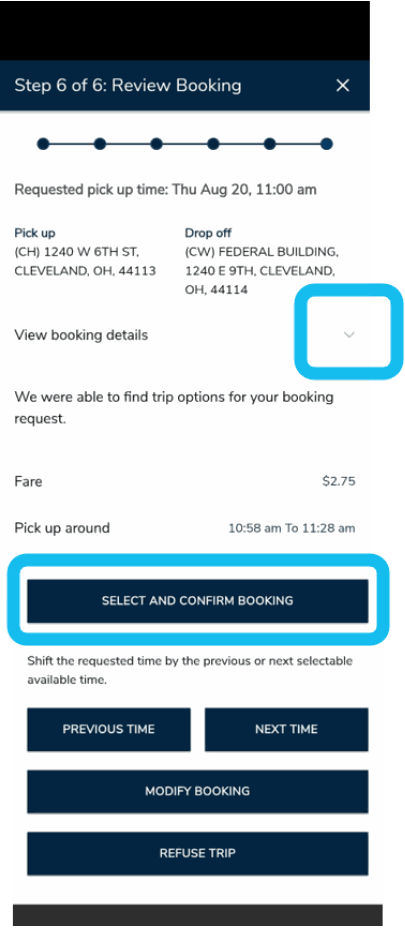
Step 6 Review and Confirm Booking
- Review your pickup time window, addresses, mobility aids, and fare.
- Tap View booking details to open and read your full trip summary.
- If everything looks right, tap Select and Confirm Booking.
- Stay on this screen: Do not close or leave the app until you see the confirmation screen with a green checkmark!
Tracking Your Ride in Real Time
Track your driver and vehicle right inside the app so you know when to be ready:
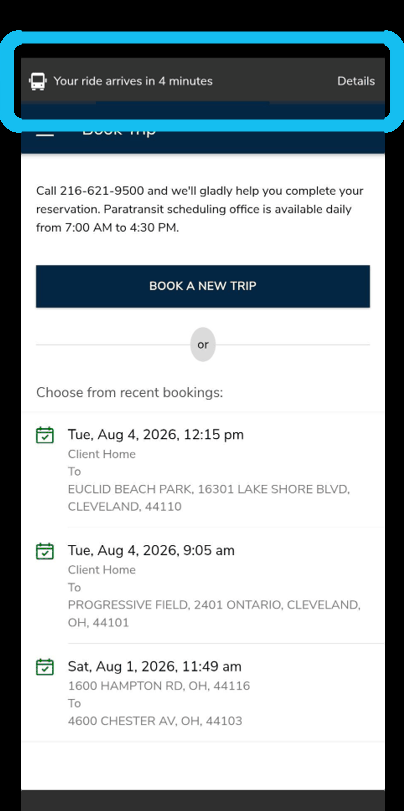
Arrival Banner
When your ride is close, a banner appears across the top of the app displaying: “Your ride arrives in X minutes”.
(Note: The GCRTA Paratransit App does not send push notifications if the app is closed, so please keep the app open to view this banner).
Live Map
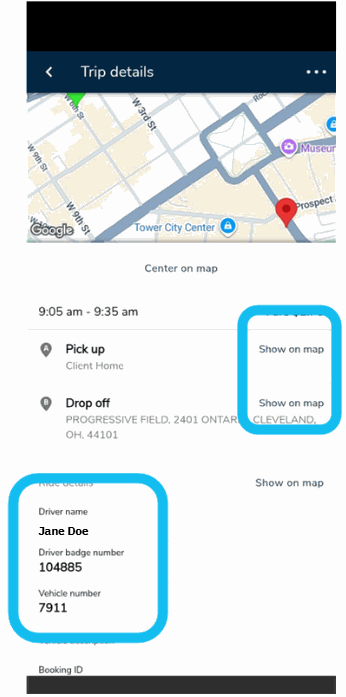
Tap Details on the banner or tap the ride from your Trips screen. A map will appear with pickup and drop-off pins and a moving vehicle icon  showing your ride’s location.
Driver Information
Once a driver is assigned, your screen will display the Driver Badge Number, and Vehicle Number for your safety and peace of mind.
What to Do When Your Bus Arrives
- Step Outside to Meet Your Driver: When the banner shows your bus is a few minutes away, make your way toward the door or agreed pickup location.
- Verify Vehicle Number: Match the bus number on the vehicle with the vehicle number on your screen.
- Pay Your Fare: Have your mobile fare (EZfare app), ticket, Smartcard, or exact cash ready ($2.75 for single ride or $7.00 all-day) for regular riders and guests; PCAs ride free.
Cancelling a Trip
If your plans change, you can cancel your ride right in the app:
- Go to the Trips screen and tap the ride you want to cancel.
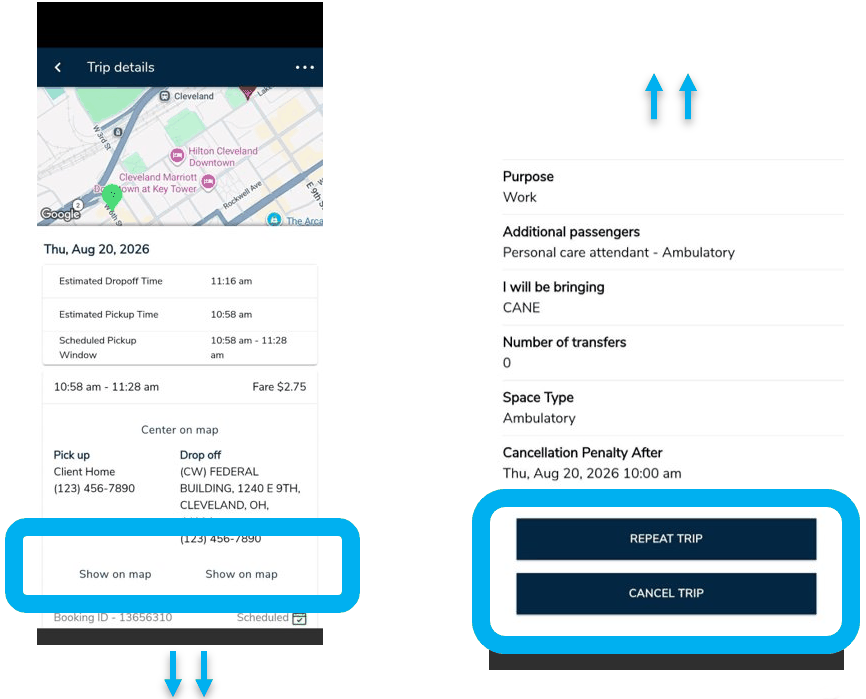
- Scroll to the bottom of the Trip Details screen.
- Tap Cancel Trip.
- Check the cancellation deadline shown on the screen to avoid late cancellation penalties.